19 July 2010

802.1x TLS authentication with Android, iPhones and iPads

In my last post I explained how to deploy the necessary infrastructure in order to connect macs to a 802.1x TLS protected network. In that post I´ll explain how to connect an Android or iPhone. The first thing you need is to add the device object in Active Directory and create certificate with the same characteristics as the one for the mac. Make sure you add "host/" at the beginning of the CN field preceding the name of the device as added in Active Directory.

Once you have the PKCS12 containers (.pfx file) with the device certificate, the key and the related certificates chains import it to the device and configure the WLAN interface as follows:

Android 2.1:
For Android, the first think you have to do is enable the credentials store. Go to "Settings", "Location and Security", and set password. Put the PKCS12 file in the root of the SD Card and come back to the security menu. Click on "Install from SD Card" and choose the appropriate file. You´ll be promoted to install the certificate, key and Root CAs. Once installed you can try to connect to the 802.1x TLS protected WLAN. Connect to the 802.1x TLS protected WLAN. As the network will request TLS authentication, the Android would request you to unblock your credentials storage. Enter the password and click Accept. In the configuration screen add the following parameters:
- EAP_ TLS
- No second phase authentication
- Choose the CA certificate (you should have only one)
- Choose the user certificate (you should have only one)
- In the identity entry add the same you added in the CN of the certificate. It should be something like: "host/machine-name"

I have successfully tested it with Android 2.1. The draw back is that you most probably will require a proxy to access the Internet and that can´t be configured in Android (unless you use a Cyanogen build)

iPhone 3, iPhone 4 and iPad:
Send the PKCS12 file by email and open it from the mail application. Follow the same instructions as the ones to connect an Android device to the WLAN. Remember to manually add the CN as the Identity with the "host/" at the beginning.

16 July 2010

802.1x TLS authentication with Macintosh

At the company where I´m working we have a nicely integrated CA with our Active Directory that allows us to automatically provision our PCs with a client certificate assigned to the System account, mostly known as a machine certificates. We are using these certificates for authenticating the devices before granting them access to the network using 802.1x EAP-TLS. We chose that solution to ensure that only corporate computers would connect to the trusted network, redirecting the rest to a semi protected network with access to the Internet and little more.

As any other enterprise we have been silently invaded by macs and now we have to find a solution to connect them to the trusted network, which in our case, implies delivering a machine certificate.

I`ll skip you the troubleshooting and go directly to the solution.
Building blocks:
- Windows 2008 Microsoft Enterprise CA
- IAS Server (Microsoft RADIUS)
- MacBook Pro, Mac OS X Snow Leopard
- WinXP SP3

I'm assuming that you have a Microsoft Integrated CA and that the 802.1x TLS is already working for the PCs. For Standalone CA (and probably non IAS Server), you might find that link useful https://airheads.arubanetworks.com/vBulletin/archive/index.php/t-1437.html

1) First you need to create a dedicated Certificate Template for issuing the certificates to the macs. The fastest solution is to duplicate the template you are using for delivering the current machine certificate but with the following changes:

- Change the Subject Name to "Supply in the request":


- Make sure you mark the check box "CA certificate manager approval". That is not strictly necessary but without this you might have severe security problems. It´s also recommended that you limit the users allowed to upload the requests.


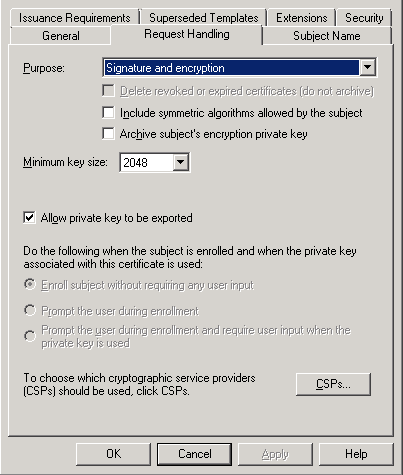
- When you are using PCs and Autoenrollment  most probably you are not allowing users to export the certificate private key. In our company we have decided that a dedicated group in IT Support will generate the certificates in a windows box, export and transfer them to a mac. In order to do so we have to check the "Allow private key to be exported":


- Once you have that in place you can craft a Certificate Signing Request and upload it to the CA. For creating the proper CSR you should know the mac name as provisioned in the Active Directory. We use the Microsoft tool LCSCertUtil. If you too, make sure you uncheck "Disable Template" and check "Exportable Private Key".

It´s very important you add the proper CN and SAN fields. If you machine name is X1234.companydomain.com make sure your CN is host/X1234.companydomain.com and the SAN is X1234.companydomain.com. That is the only difference between the machine certificates delivered to windows boxes and the rest.

- Once you have the certificate in the Windows box, open Internet Explorer go to Tools, Internet Explorer, Content, Certificates; choose the certificate and export it in a PKCS12 container (windows will generate a .pfx file) making sure you include the private key and the certificate chains.

- The next would be to import the file in the mac keystore and create a 802.1x profile in the mac assigning the certificate in the TLS protocol using the Advanced network features (make sure you disable the other protocols), but if you reached that point it should not be a big deal.

Good night and good luck.

20 May 2010

Verify Server certificate

As the first real post I want to start with the basics. As a manager of a trusted CA the most common complain I receive is that the certificate "does not work". In 99% of the cases the root of the problem is that the administrator did not install the proper SubCA or SubCAs or it install them in the wrong CA store (if the server is a IIS).

I always provide the following possibilities in orded to verify the SubCAs sent by the server.

* openssl (http://www.openssl.org/) If you can have acess to it just run:
openssl s_client -connect SERVERNAME:443 

where SERVERNAME is the DNS name of the server you want to verify. Run the command and check the "Certificate chain" part. In most cases you´ll need to see the certifcates 0 (the server certificate) and 1 (the chain). There are cases you might even need an extra chain. It´s necessary that the Issuer (i:) of the last certificate is available on the client, otherwise you´ll have an error.

openssl s_client -connect google.com:443
CONNECTED(00000003)
depth=1 /C=ZA/O=Thawte Consulting (Pty) Ltd./CN=Thawte SGC CA
verify error:num=20:unable to get local issuer certificate
verify return:0
---
Certificate chain
 0 s:/C=US/ST=California/L=Mountain View/O=Google Inc/CN=www.google.com
   i:/C=ZA/O=Thawte Consulting (Pty) Ltd./CN=Thawte SGC CA
 1 s:/C=ZA/O=Thawte Consulting (Pty) Ltd./CN=Thawte SGC CA
   i:/C=US/O=VeriSign, Inc./OU=Class 3 Public Primary Certification Authority
---
Server certificate
-----BEGIN CERTIFICATE-----
MIIDITCCAoqgAwIBAgIQL9+89q6RUm0PmqPfQDQ+mjANBgkqhkiG9w0BAQUFADBM
MQswCQYDVQQGEwJaQTElMCMGA1UEChMcVGhhd3RlIENvbnN1bHRpbmcgKFB0eSkg
THRkLjEWMBQGA1UEAxMNVGhhd3RlIFNHQyBDQTAeFw0wOTEyMTgwMDAwMDBaFw0x
MTEyMTgyMzU5NTlaMGgxCzAJBgNVBAYTAlVTMRMwEQYDVQQIEwpDYWxpZm9ybmlh
MRYwFAYDVQQHFA1Nb3VudGFpbiBWaWV3MRMwEQYDVQQKFApHb29nbGUgSW5jMRcw
FQYDVQQDFA53d3cuZ29vZ2xlLmNvbTCBnzANBgkqhkiG9w0BAQEFAAOBjQAwgYkC
gYEA6PmGD5D6htffvXImttdEAoN4c9kCKO+IRTn7EOh8rqk41XXGOOsKFQebg+jN
gtXj9xVoRaELGYW84u+E593y17iYwqG7tcFR39SDAqc9BkJb4SLD3muFXxzW2k6L
05vuuWciKh0R73mkszeK9P4Y/bz5RiNQl/Os/CRGK1w7t0UCAwEAAaOB5zCB5DAM
BgNVHRMBAf8EAjAAMDYGA1UdHwQvMC0wK6ApoCeGJWh0dHA6Ly9jcmwudGhhd3Rl
LmNvbS9UaGF3dGVTR0NDQS5jcmwwKAYDVR0lBCEwHwYIKwYBBQUHAwEGCCsGAQUF
BwMCBglghkgBhvhCBAEwcgYIKwYBBQUHAQEEZjBkMCIGCCsGAQUFBzABhhZodHRw
Oi8vb2NzcC50aGF3dGUuY29tMD4GCCsGAQUFBzAChjJodHRwOi8vd3d3LnRoYXd0
ZS5jb20vcmVwb3NpdG9yeS9UaGF3dGVfU0dDX0NBLmNydDANBgkqhkiG9w0BAQUF
AAOBgQCfQ89bxFApsb/isJr/aiEdLRLDLE5a+RLizrmCUi3nHX4adpaQedEkUjh5
u2ONgJd8IyAPkU0Wueru9G2Jysa9zCRo1kNbzipYvzwY4OA8Ys+WAi0oR1A04Se6
z5nRUP8pJcA2NhUzUnC+MY+f6H/nEQyNv4SgQhqAibAxWEEHXw==
-----END CERTIFICATE-----
subject=/C=US/ST=California/L=Mountain View/O=Google Inc/CN=www.google.com
issuer=/C=ZA/O=Thawte Consulting (Pty) Ltd./CN=Thawte SGC CA
---
No client certificate CA names sent
---
SSL handshake has read 1765 bytes and written 313 bytes
---
New, TLSv1/SSLv3, Cipher is RC4-SHA
Server public key is 1024 bit
Compression: NONE
Expansion: NONE
SSL-Session:
    Protocol  : TLSv1
    Cipher    : RC4-SHA
    Session-ID: B3E695F8FA99A262EC5916678E686907ABF5CC2EE5B85EE994A3CBE7360B0DBA
    Session-ID-ctx:
    Master-Key: FFA4CB2368CDAF125D1284CC0CA739C0A40E9E429B5CD07FAF7177546694D7448524242B513749CFE33C14DE0D129746
    Key-Arg   : None
    Start Time: 1274307867
    Timeout   : 300 (sec)
    Verify return code: 0 (ok)
---


* Online Tool. If you can't use openssl or you are afraid of using the command line there are plenty of online tools that will check the certificate for you. Find below a couple of links that work quite well:

http://jce.iaik.tugraz.at/sic/Products/Communication-Messaging-Security/iSaSiLk/demo
Although the page is in German, it´s quite simple to use. What I like is that it provides all information oyu need and more.

http://www.sslshopper.com/ssl-checker.html
Nice format and simpler to read but with less information.

19 May 2010

Here we are!

After several years crawling the Internet looking for pki related questions I think is time I feedback my own solutions. The idea is to post my finding on Code Signing, TLS, Document Signing, encryption and similar.
I hope you find it useful.